
Help
Illustrated guide: open the one you need.
From a file: WhatsAppMessengerTelegram
With the extension: PasteCtrl+C → Ctrl+V
A) Export + upload
Free, works on a phone too.
B) Chrome extension — copy, paste
No export needed, on a computer.
Free during the pilot.
Set up the extension Set up on a computer. 📖 Illustrated guide
1. WhatsApp — 4 steps
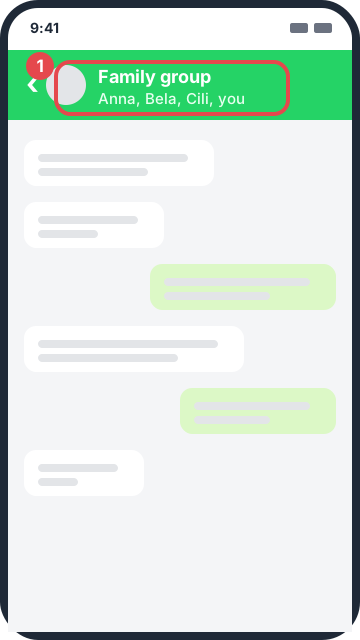
Open the group and tap the group name.
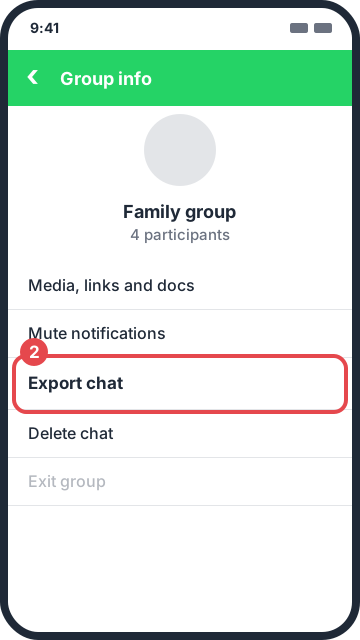
Scroll down: Export chat.
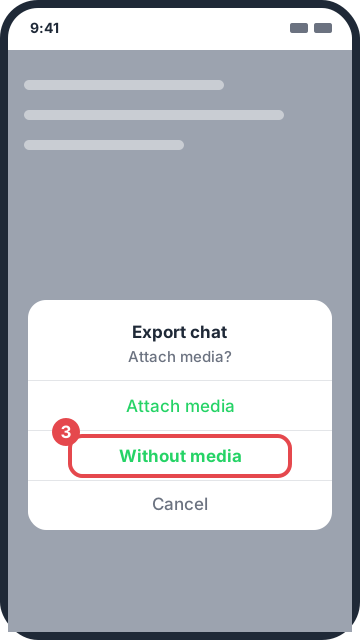
Choose: Without media.
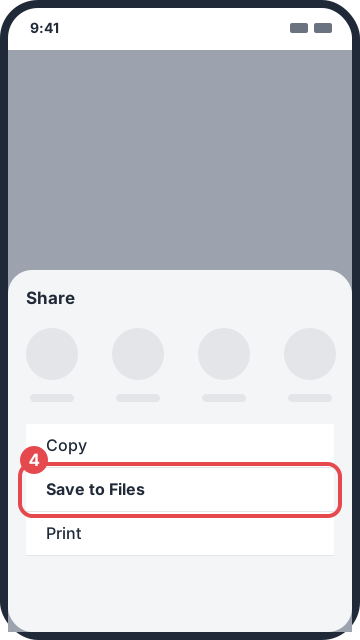
iPhone: Save to Files · Android: Save to device On Android, if Chat Digest is added to your home screen, you can pick it directly in the Share menu. On Android the file can also be saved to the Downloads folder.
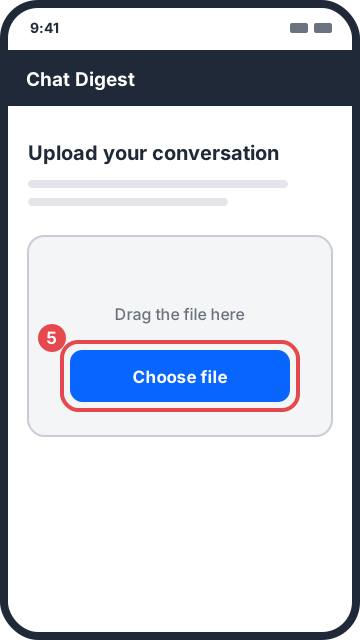
Then, here: Choose a file.
2. Messenger — 3 steps
⏱ It arrives by email and can take hours. Instead of exporting, you can copy the text of the chat and paste it (Chrome extension or the “Paste text” box).
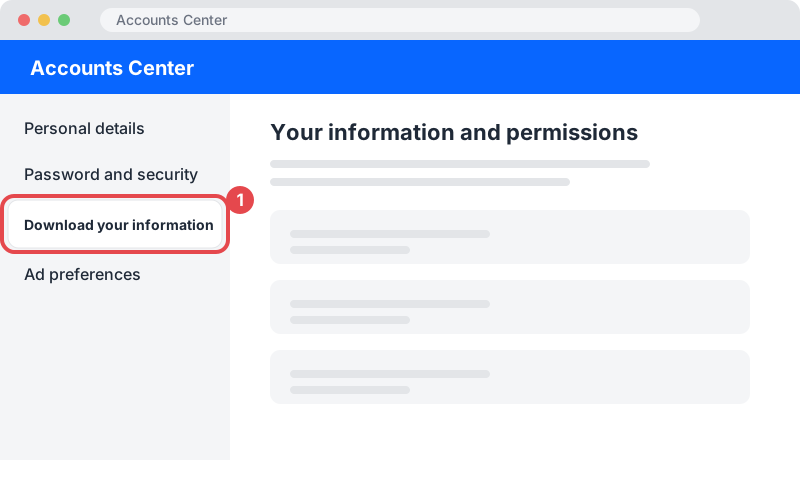
facebook.com → Settings → Accounts Center → Download your information.
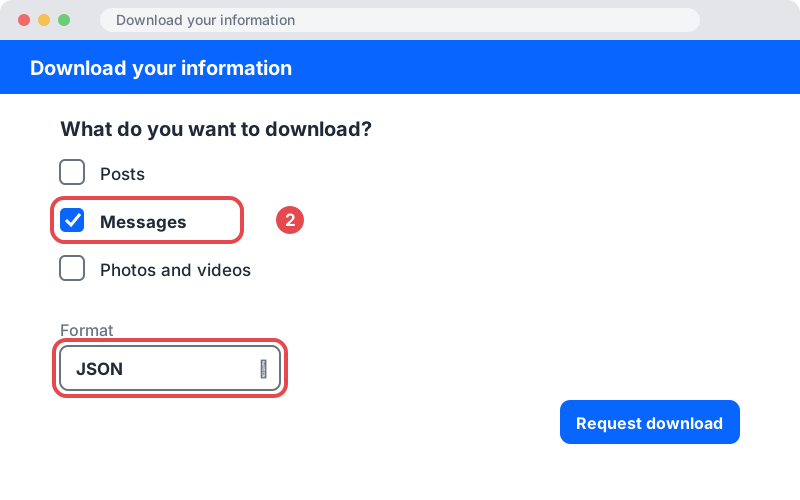
Only Messages, format: JSON.
Download it from the email:
message_1.json, and upload that.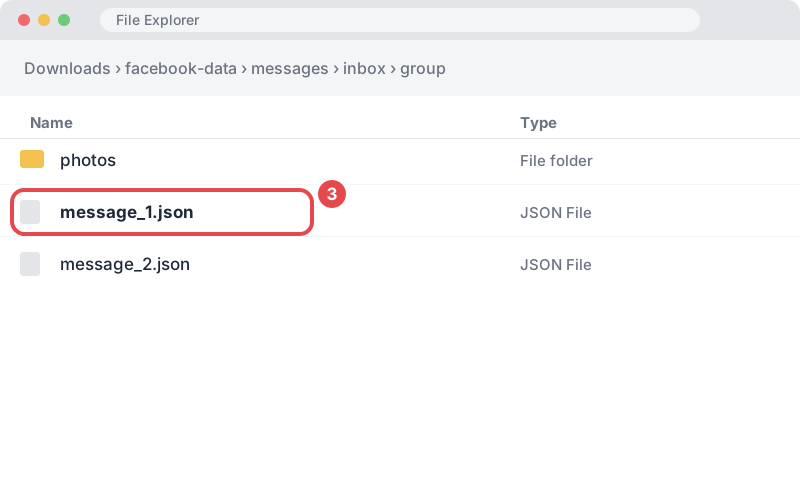
3. Telegram — 2 steps (on a computer)
💻 Telegram Desktop only.
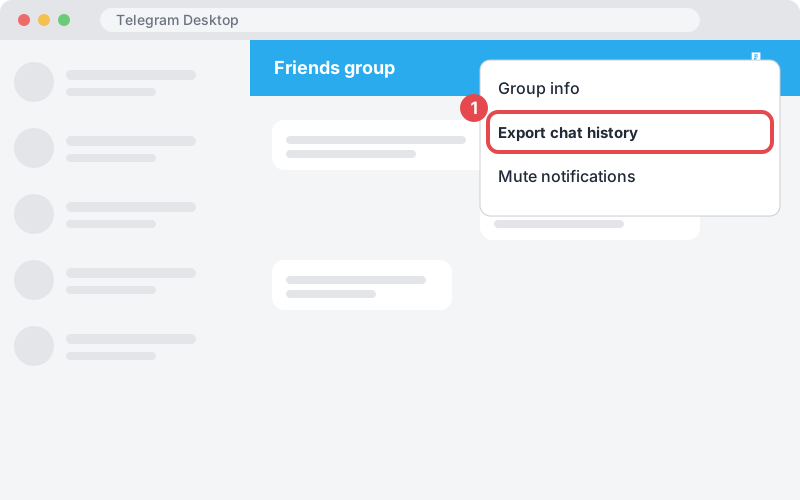
Group ⋮ menu → Export chat history.
Media off, format JSON → Export.
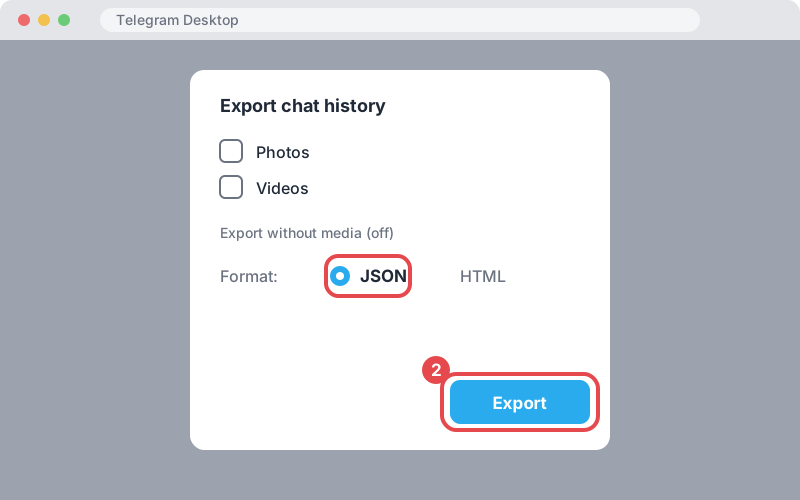
Then upload the result.json file.
4. Chrome extension — 6 steps (on a computer)
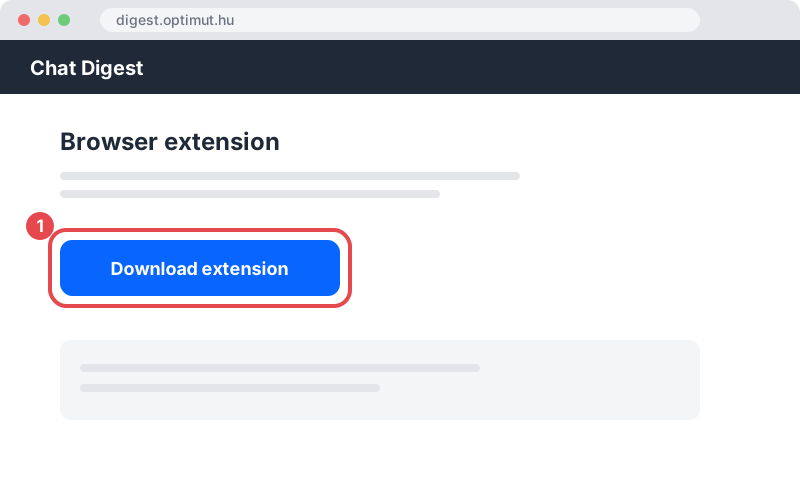
Click: Download the extension.
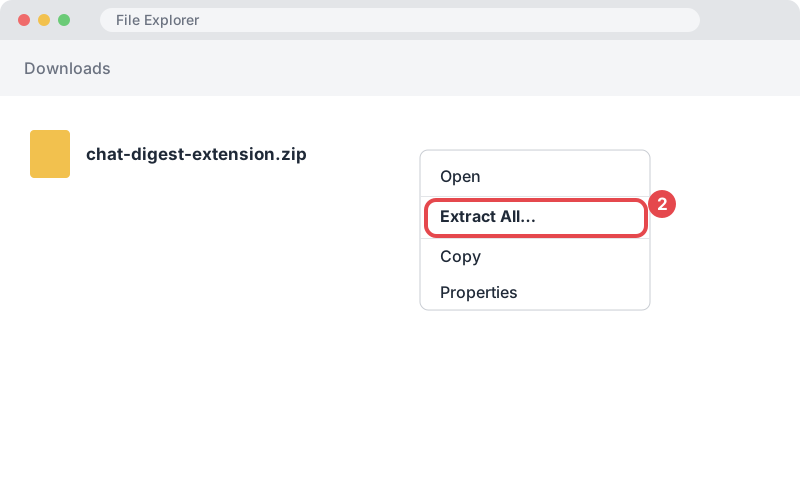
Right-click the downloaded zip → Extract All.
In Chrome:
chrome://extensions, turn on Developer mode at the top right.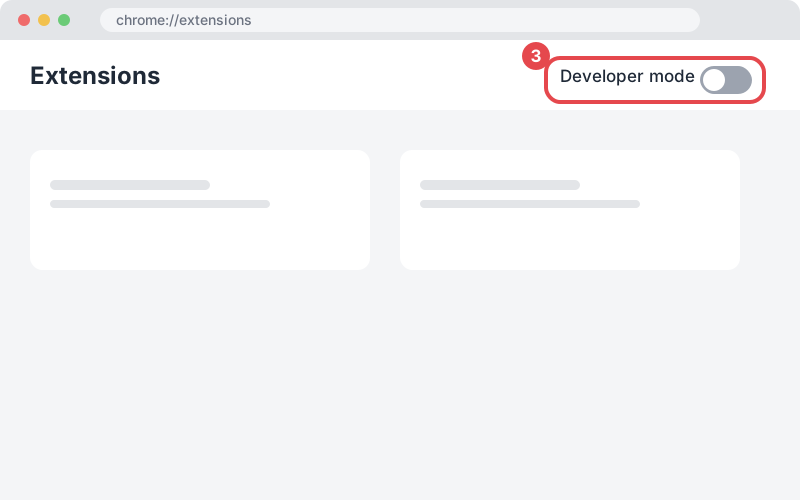
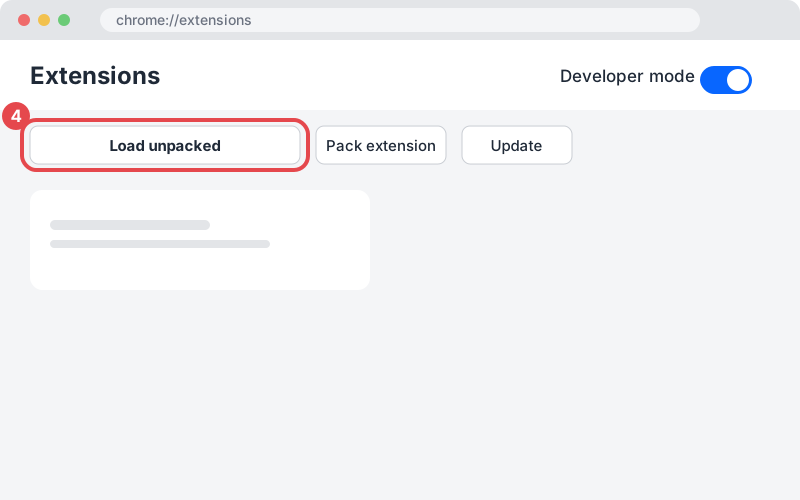
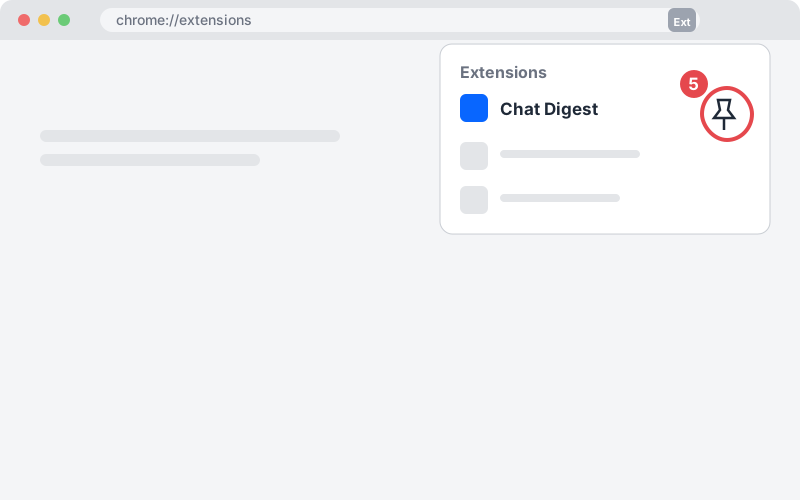
Load unpacked → choose the extracted folder. After installing, the extension opens the connect page by itself; if it does not, refresh (F5). Chrome may warn about an “unverified” extension: that is normal for a manual install, not an error. You will find the Chat Digest icon in the 🧩 menu.
Toolbar 🧩 → next to Chat Digest, 📌 (pin).
Copied text (Ctrl+C): icon → side panel: Ctrl+V → Get digest.
How to copy
Messenger (messenger.com)
- Scroll up to the start. Messenger loads older messages as you scroll; scroll up to where you want the summary to start.
- Select downwards. With the mouse, from the first message downwards, including the day-change lines (e.g. “October 21”).
- Copy it: Ctrl+C. Then click the Chat Digest icon (side panel) and paste: Ctrl+V.
Facebook group
- Scroll to the posts.
- Click See more. A long post is cut off, so the copied text only has its beginning. Click “view more comments” too. The extension doesn't click for you.
- Select and copy. Ctrl+C, then the Chat Digest icon (side panel) and Ctrl+V.
- Are there events? Copy the Events tab too. Facebook doesn't copy the names and times of shared events from the feed. Open the group's Events tab, select all (Ctrl+A), copy (Ctrl+C), and paste it after the feed text.
WhatsApp, Telegram: export file. An export file works best: complete, with dates.
5. Home screen — Android, iPhone
Even easier on Android
- Chrome: digest.optimut.hu → ⋮ → Add to Home screen
- For a WhatsApp export: Share → Chat Digest
On iPhone and iPad
- Safari: Share (□↑) → Add to Home Screen → Add
- Sharing straight to Chat Digest is not possible on iPhone (Apple does not support it): save the file + Choose a file
6. Common problems
- “Unsupported file type”, “Unknown JSON format”, “The zip doesn't contain a recognizable chat export” — wrong file. Right ones: WhatsApp
.txt/.zip, Telegram.json/.html, Messenger.json. Export again. - “The file is too big (max 15 MB).” — export Without media.
- “Digest creation isn't available right now.” — temporary, not your fault. Try again in a few minutes.
- “You can request up to 5 digests a day from a file.” — try again tomorrow.
- “You can make digests with a free account.” — sign up, or log in.
- I cannot find the file — iPhone: the Files app; Android: Downloads.
- I cannot find it in Messenger — see 2. Messenger.
- I lost my digest — when logged in, it is in your list of digests for 90 days.
- Checked-off to-do — stays on this device, in this browser.
- What is the Chrome extension for? — copied and pasted text, no export needed: 4. Chrome extension.
- Are my messages safe? — we store only the digest. Privacy
7. Let your group know
A ready-made note for your group: read it with the ⓘ, then copy it.
Hi all! I sometimes make an AI summary of this group's messages for myself with Chat Digest (digest.optimut.hu), so I don't miss the important things. The text is processed by an external AI provider (Anthropic); Chat Digest does not store the raw messages, and the summary stays in my account for 90 days. If anyone would rather not be included, just say so and I'll leave out their messages.
Cannot find it? Write to us with the 💬 Feedback button at the bottom right.